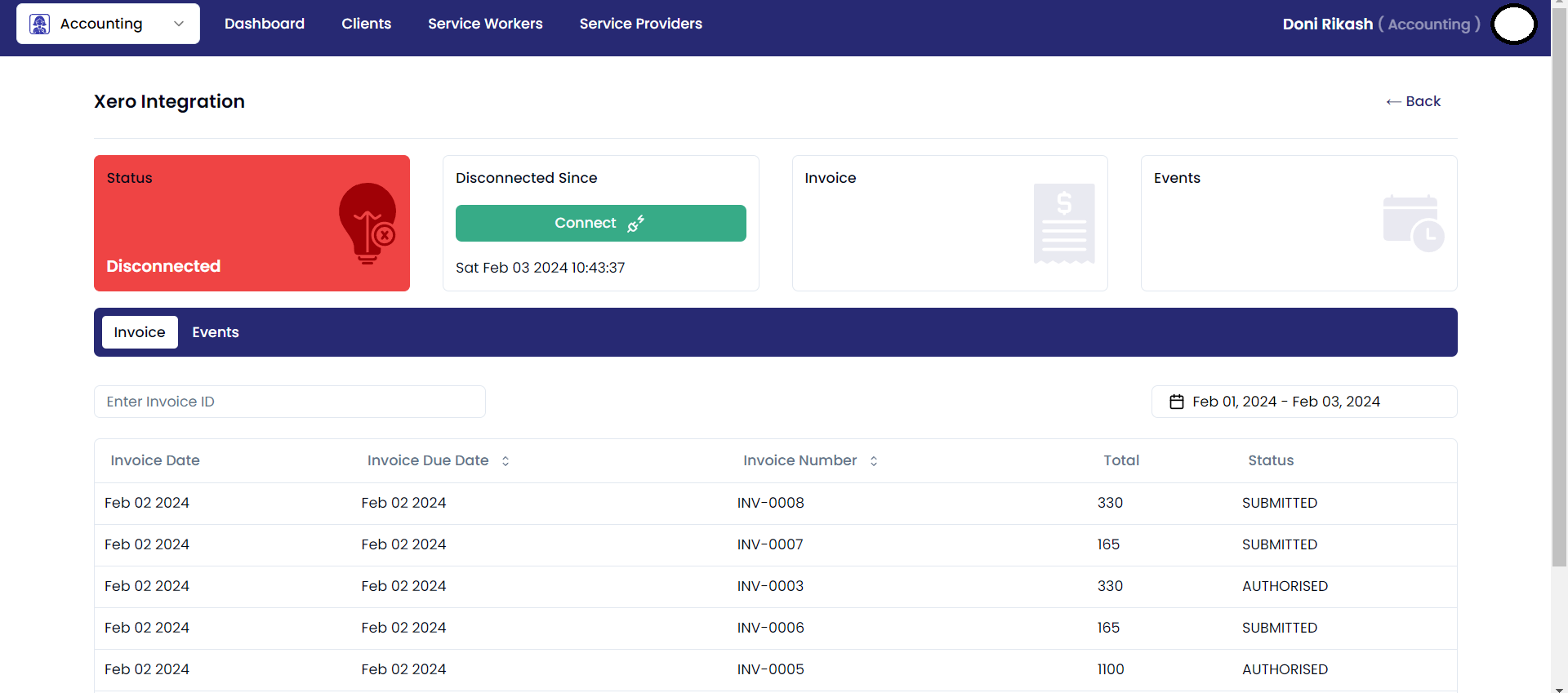
Xero Disconnect
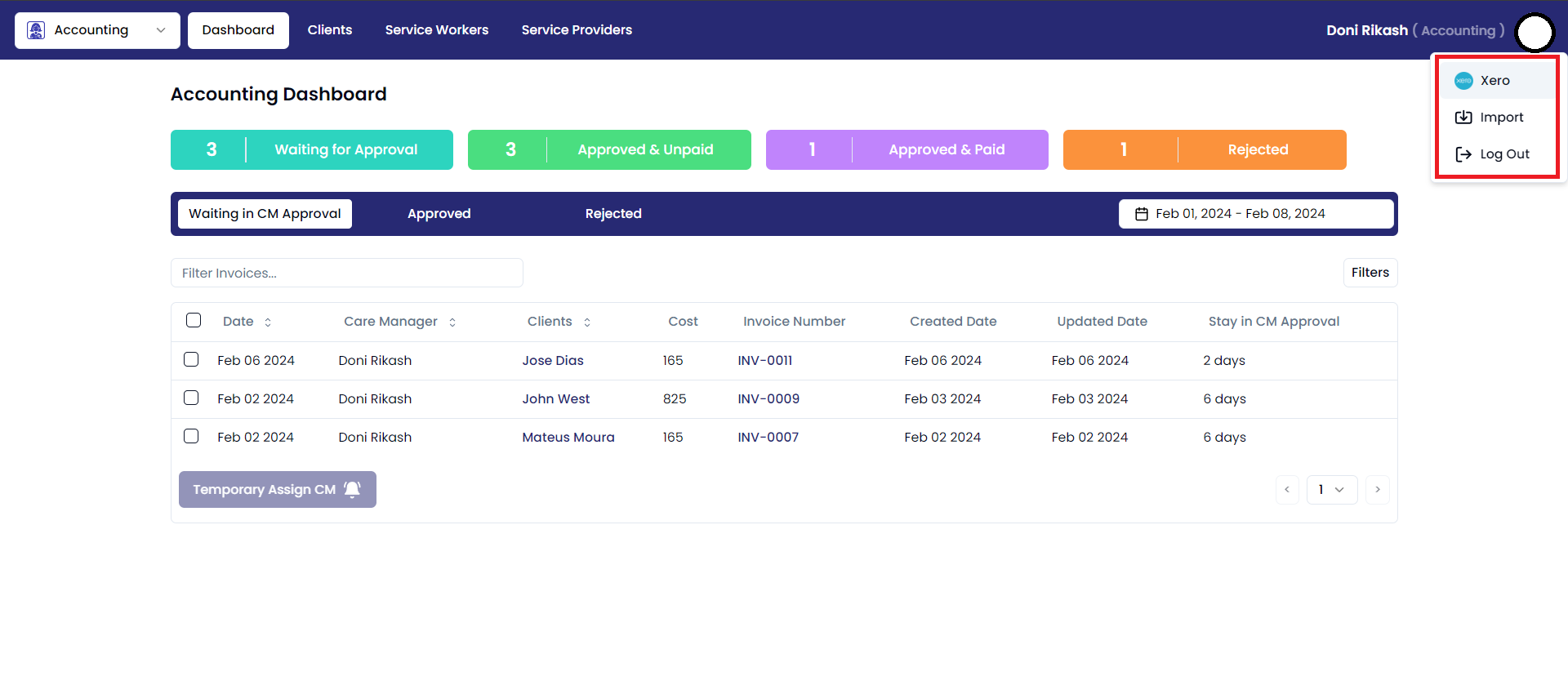
For a smooth access to Xero's features and financial data, simply connect Xero by using the designated integration available on the dashboard page.
Steps:
- Click on the user profile icon in the top right corner of the Accounting window. This will open a drop-down menu.
- In the drop-down menu, click on the "Xero" option.
- This will take you to the Xero dashboard page.
Xero Disconnect with Approval Portal:
To disconnect from Xero, users can initiate the process by clicking the designated "Disconnect" button. Simplify your experience by seamlessly navigating through the disconnect option, empowering users with control over their Xero connectivity.

- Ensure the button displays the "Disconnect" option.
- Click the "Disconnect" button to sever the Xero connection.
Once you have followed these steps, Xero will be disconnected from the integration. You will no longer be able to see any changes you make in invoice with xero will not be reflected in Xero dashboard.