Xero App Configuration
Initiate live invoice display.
Configuring Your App on Our Website:
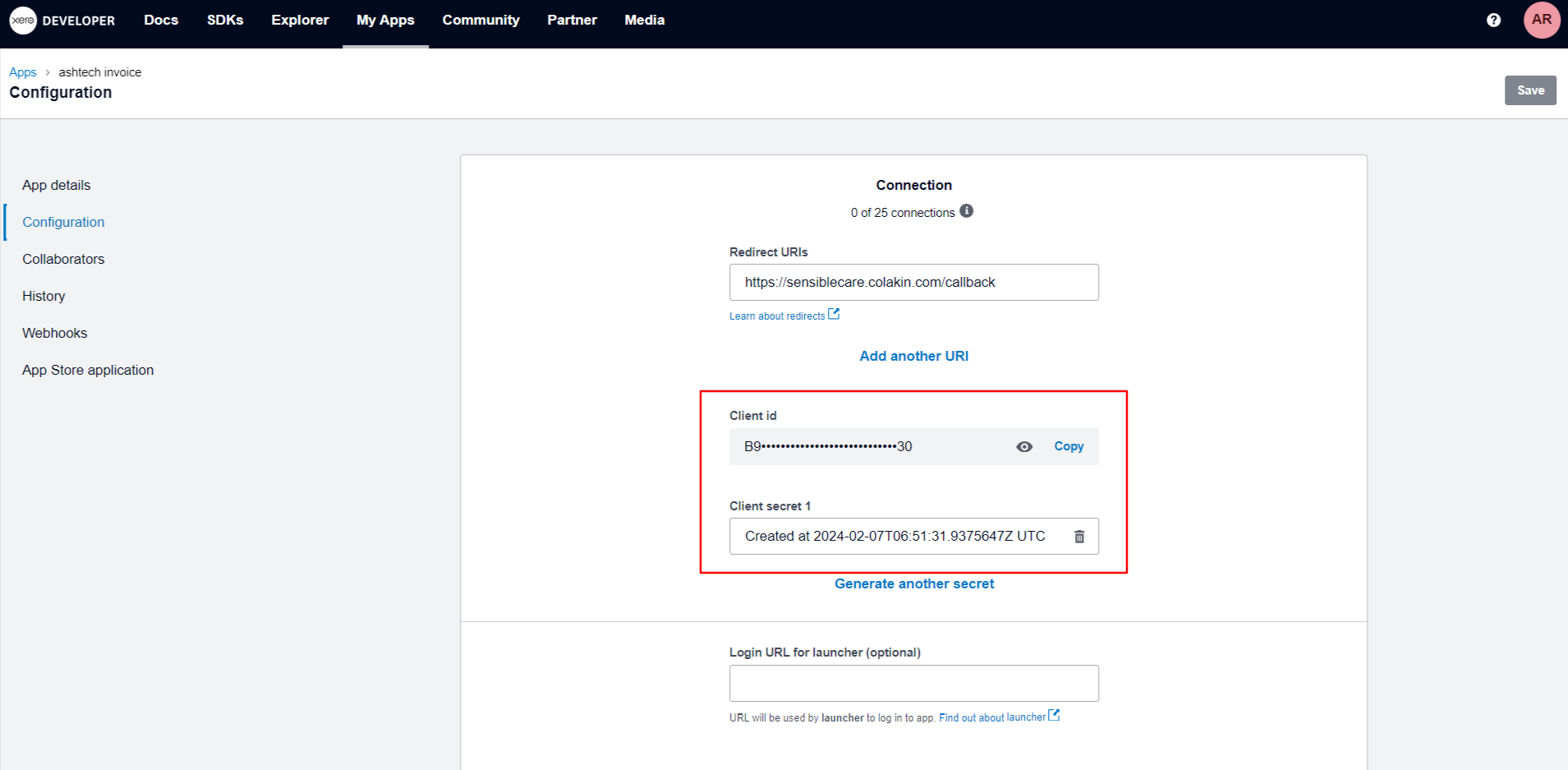
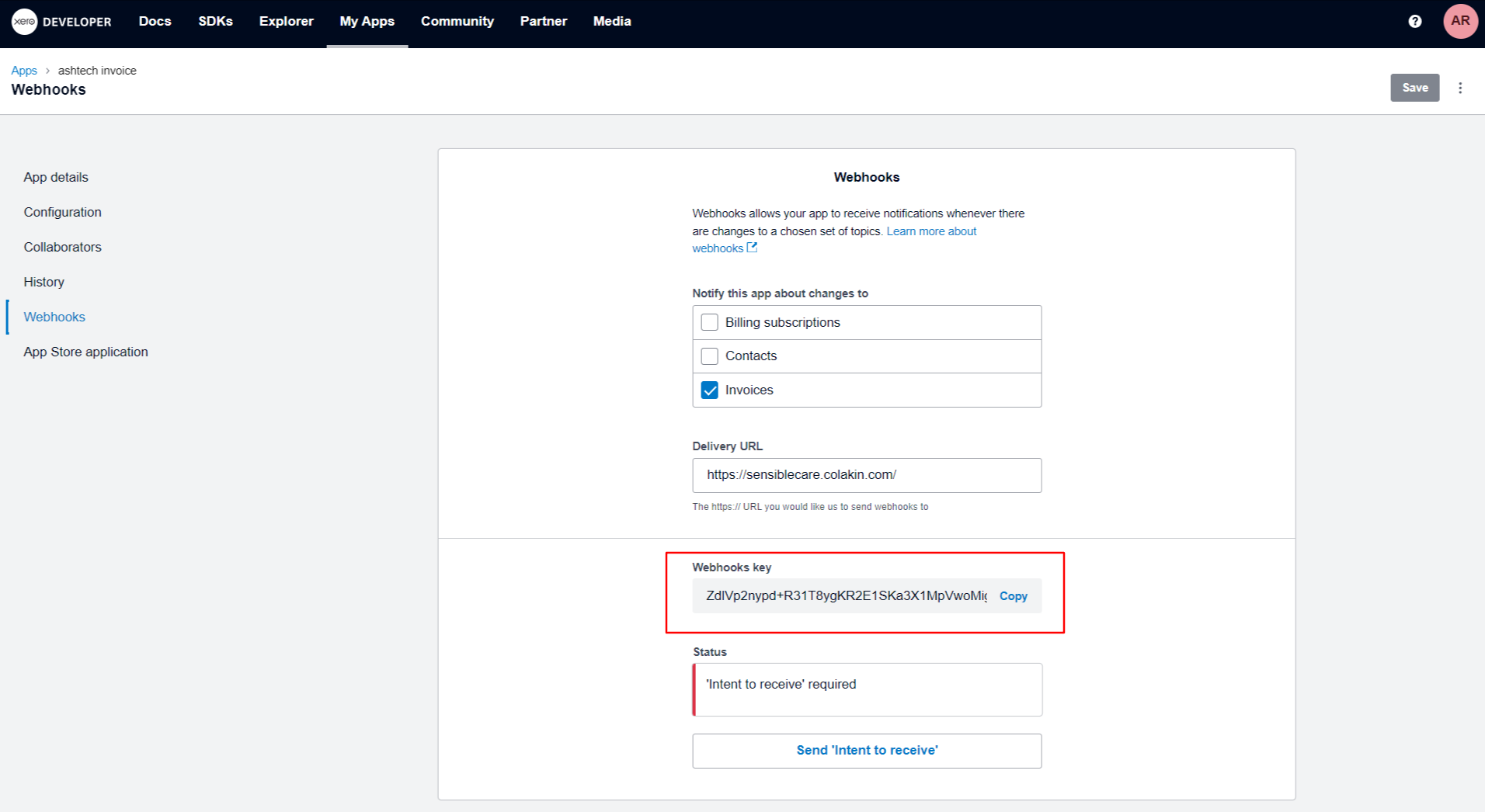
To configure their app in Xero with our website for real-time updates on invoices, users should send the "client ID", "client secret id", and "webhook key" to Colakin via email. These essential credentials serve as the bridge between Xero and our website, enabling seamless integration. Once provided, Colakin can set up the necessary connections, allowing users to view live updates of invoices directly within the Xero app on our website.
Initiating Live Invoice Display Process:
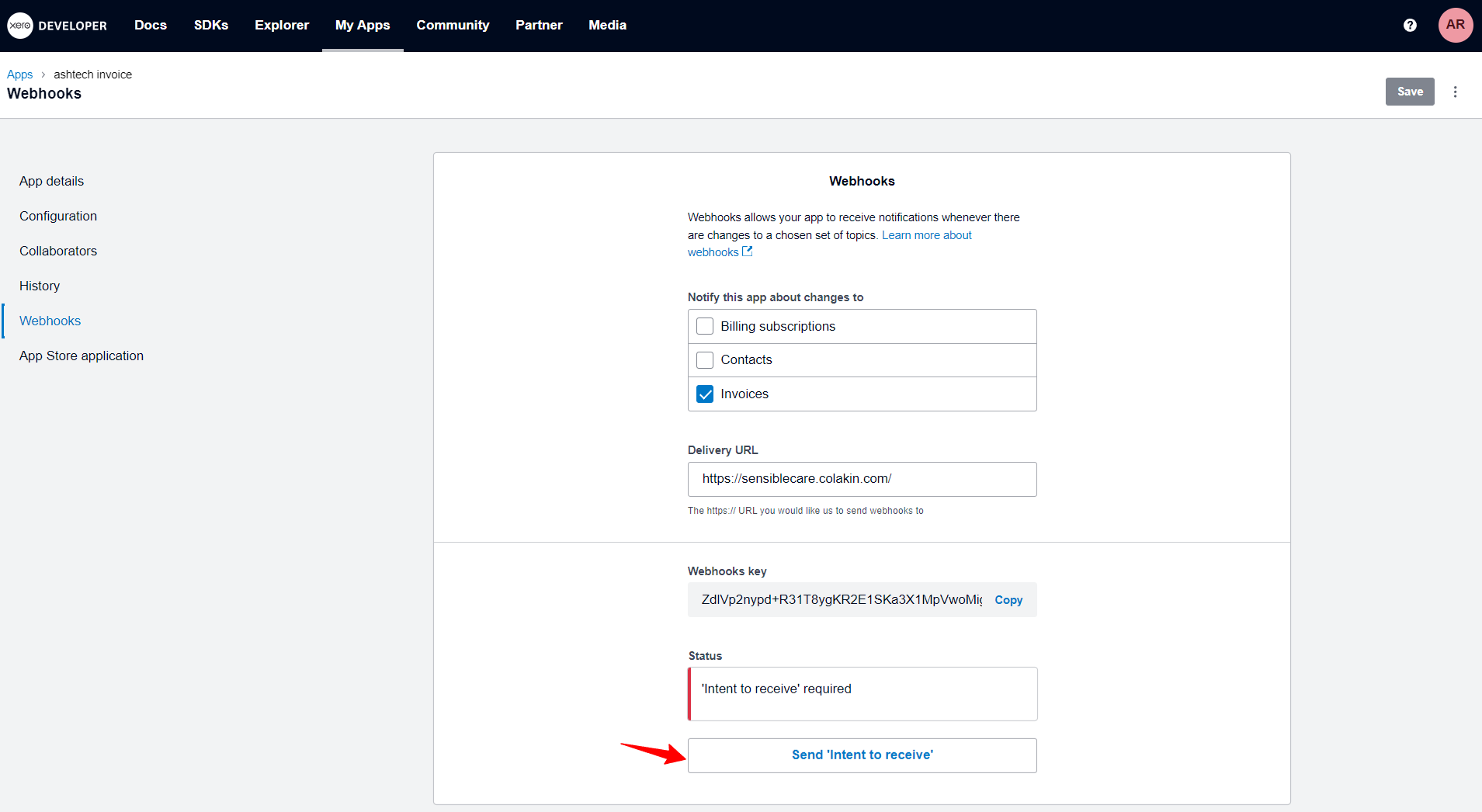
Once Colakin has accepted your configuration and established the webhook connection, you can click the "Send intent to retrieve" button to initiate the process of retrieving invoice data from your Xero account and displaying it live on your website. This button essentially triggers the webhook, sending a request to Xero for the latest invoice information.
Steps:
- Navigate to the Webhooks page in your Xero app settings.
- Locate the webhook you created for sending invoice data to Colakin.
- Ensure the webhook is enabled and the URL of your desired webpage is correctly entered.
- Click the "Send intent to retrieve" button. This will trigger the webhook and send a request to Xero for invoice data.