Dashboard
Approval Dashboard
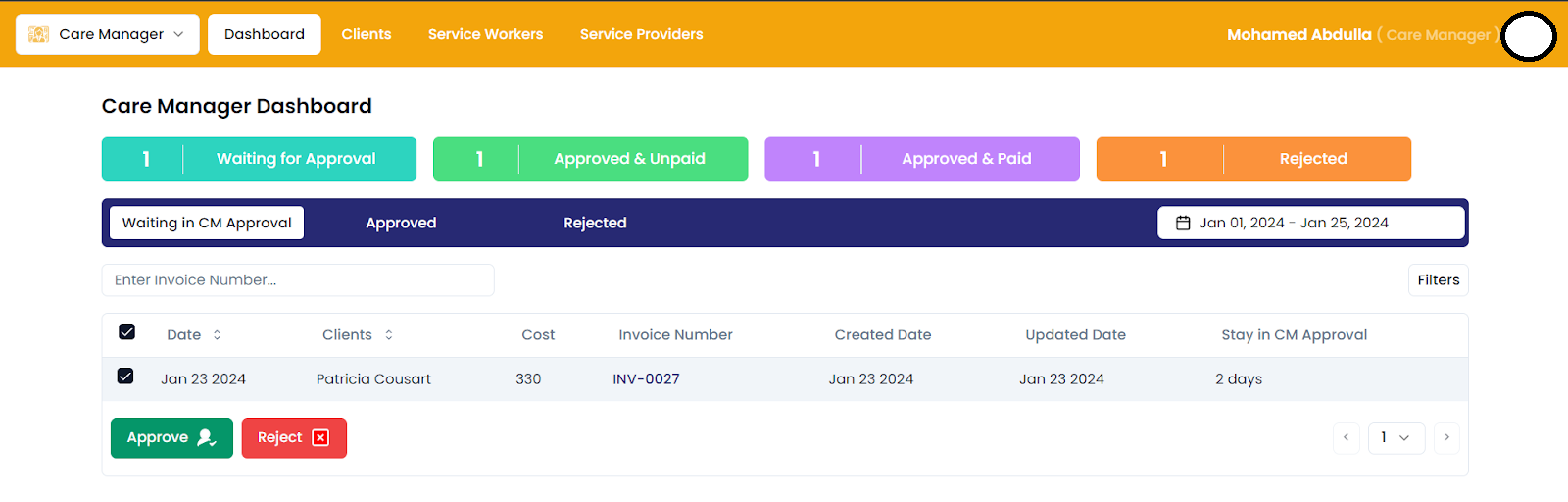
The Approval Dashboard is a central platform for managing invoice approvals within your organization. It streamlines the approval workflow, allowing users to track, review, and take action on invoices efficiently. With features for filtering, sorting, and bulk actions, it ensures timely payment to vendors and suppliers.
Approval team can view all the invoices that are assigned to them. They can take actions such as approving or rejecting individual invoices as well as performing these actions on multiple invoices simultaneously.
Invoice Status:
- Submitted Invoices: Displaying the count of invoices that have been submitted for approval.
- Approved & Unpaid Invoices: Displaying the count of invoices that have been approved but remain unpaid.
- Approved & Paid Invoices: Displaying the count of invoices that have been approved and already paid.
- Rejected Invoices: Displaying the count of invoices that have been rejected.
Invoice Stage:
Waiting for CM Approval:
- Displays all submitted invoices awaiting approval from the approval team.
- Users can approve or reject invoices using buttons after selecting invoices using checkboxes.
- Each row represents an invoice. Clicking on the invoice number redirects to the particular invoice page, while clicking on the client name redirects to the client statement page.
Approved & Unpaid / Paid:
- Lists all approved invoices that are either unpaid or paid.
- Users can review details of each invoice and take necessary actions.
Rejected Invoices:
- Lists all invoices that have been rejected.
- Users can review details of rejected invoices and take appropriate actions if needed.
Approval Table Functionality:
- Users can sort and search invoices using invoice number.
- Date filter functionality is provided for filtering invoices based on date.
- Checkboxes allow users to select multiple invoices for bulk actions.
- Pagination feature for navigating through multiple pages of invoices.
- Column filter functionality enables users to select which columns to show or hide.
Approve:
- Care Managers select invoices.
- Click the 'Approve' button.
- Confirmation toast displays.
- Status update may take 20-50 seconds.
- Patience during reflection of updated status.
- If any invoice has negative balance, we skipped approval and show toast message
if Reject :
- Care Managers (CM) select invoices.
- Click the 'Reject' button.
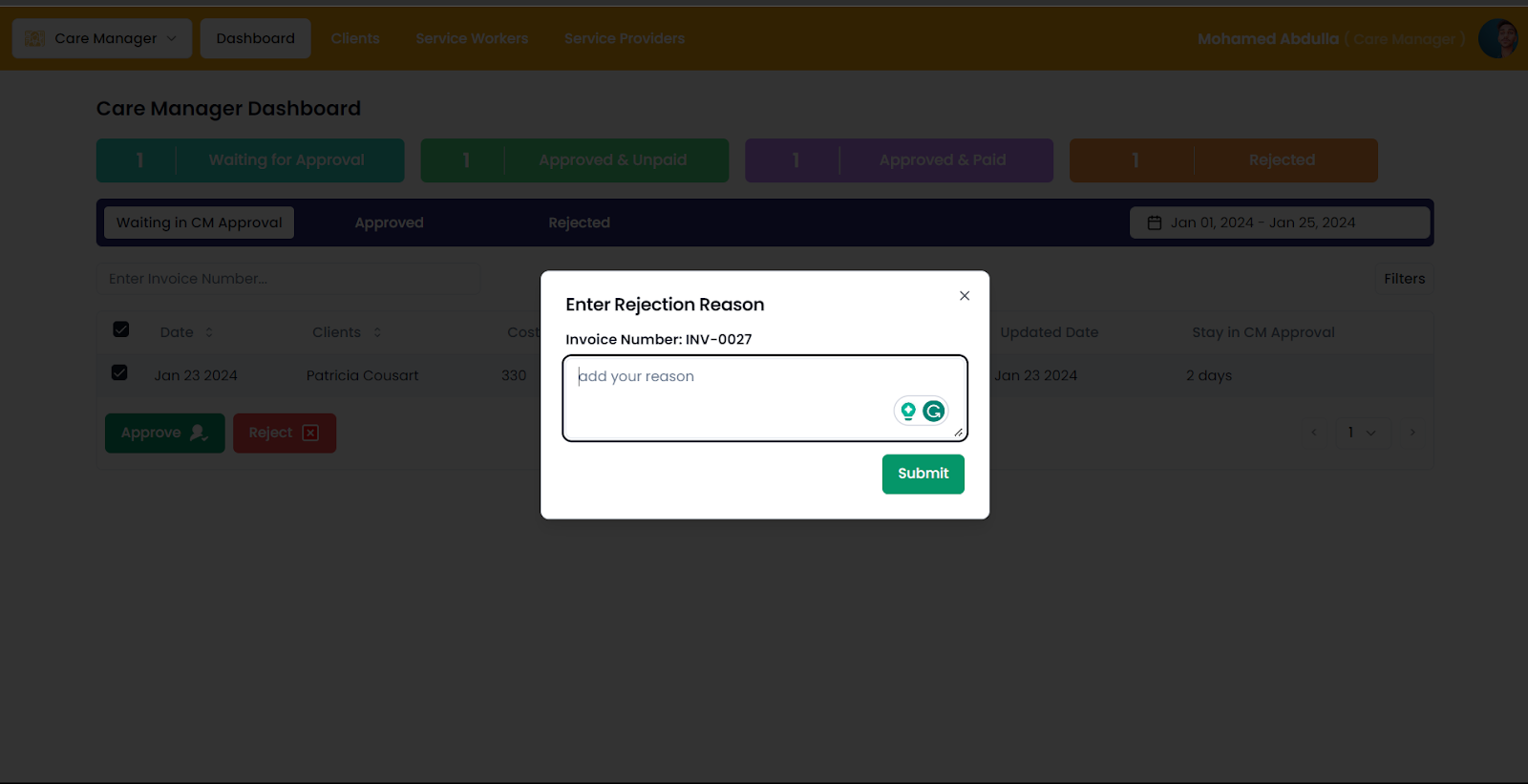
- Modal prompts for reject reasons for multiple invoices.
- After providing reasons, click 'Submit.'
- Allow 20-50 seconds for the updates to reflect.