Client Statement
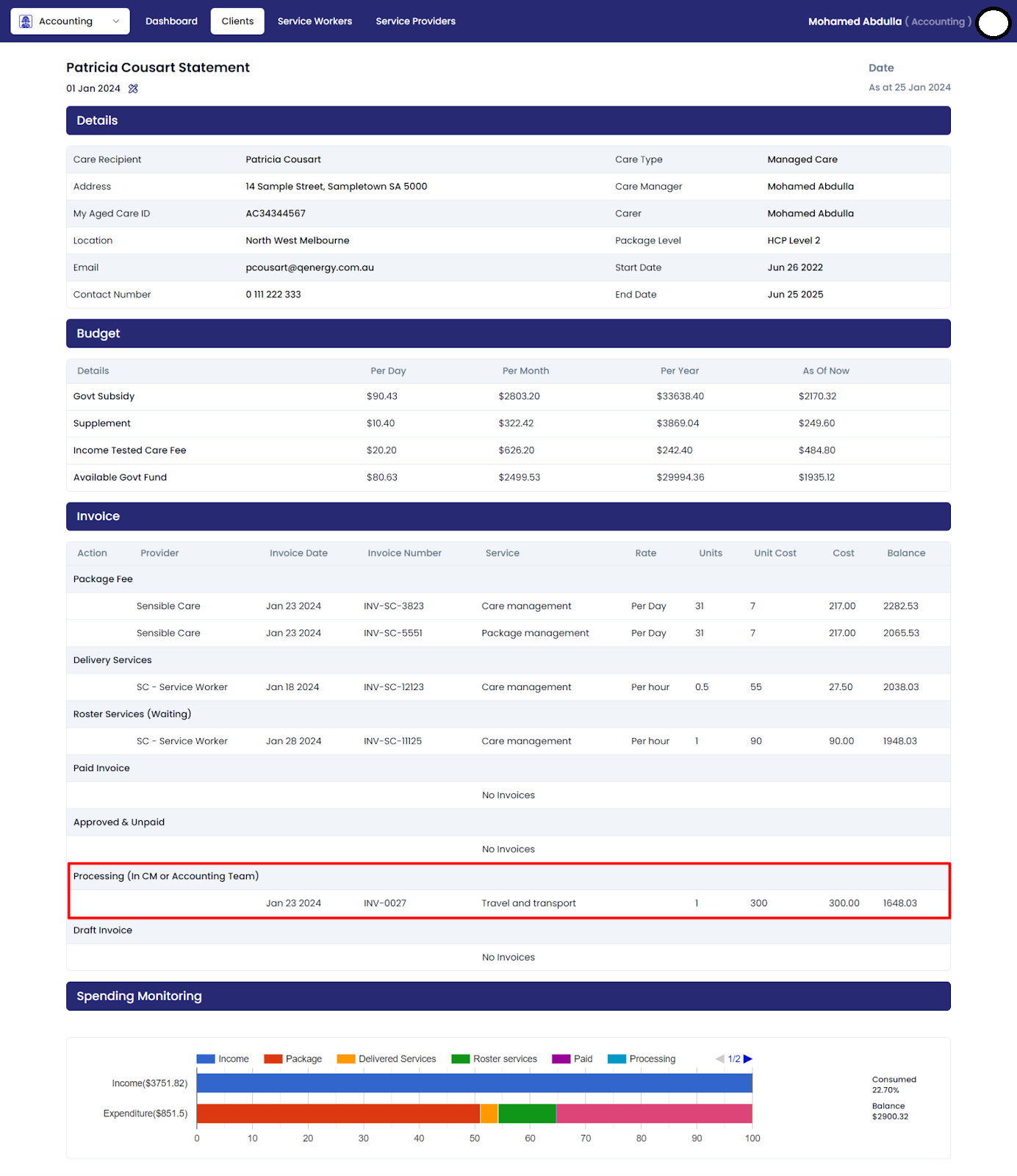
Welcome to your personalized Client Statement Page, designed to provide a comprehensive overview of your financial interactions and empower you with valuable insights. This page is divided into four sections to enhance your understanding and facilitate effective financial management
Invoice Filtering by Date Range
- The Invoice Filtering by Date Range feature allows users to refine their search for invoices by specifying a custom date range.
- By default, the filter selects the current month's start date as the "From" date and the current date as the "To" date.
- Users can modify these dates to narrow down their search criteria and retrieve invoices within a specific time frame.
- This feature facilitates efficient invoice management by enabling users to focus on invoices relevant to their desired time period.
Client Details
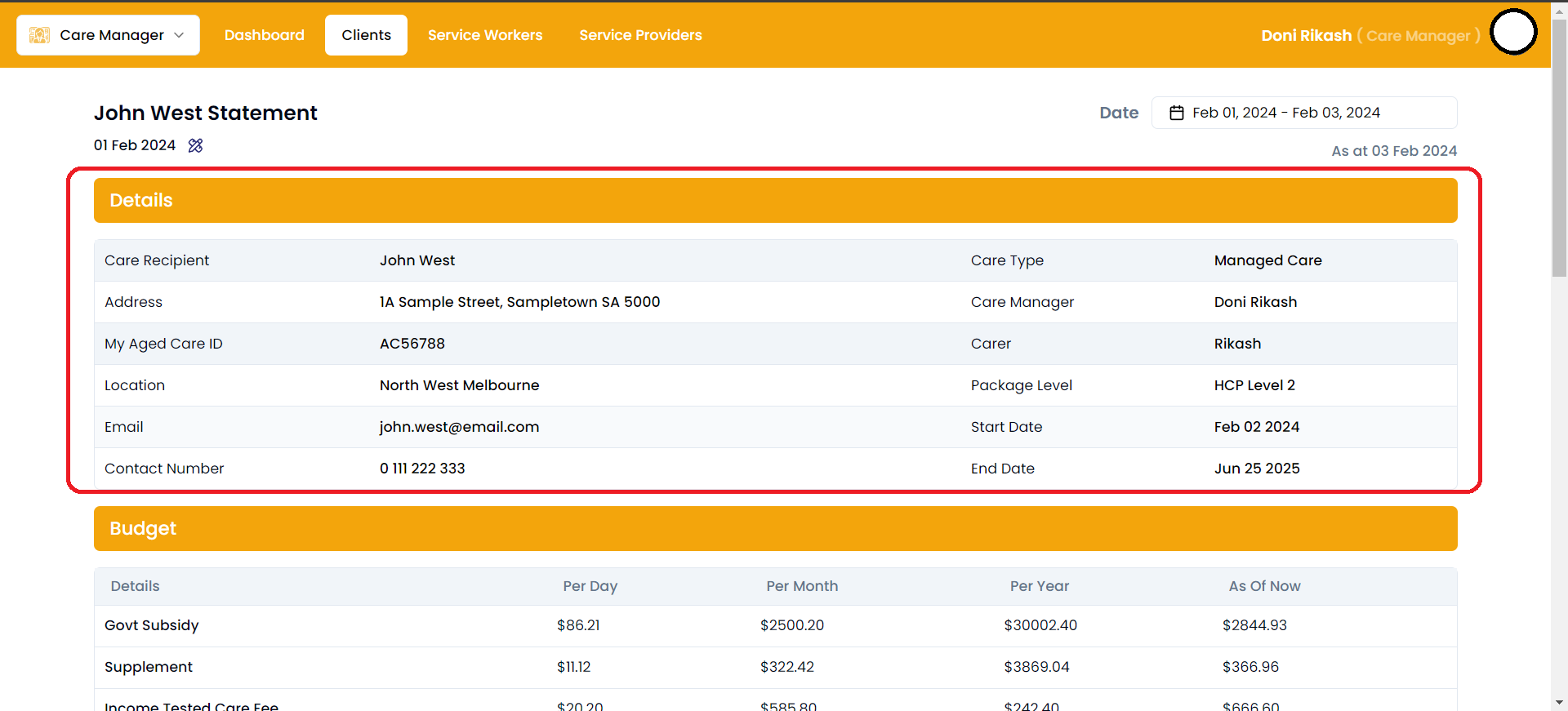
Your personal details, including name, contact information, and account identification, are conveniently displayed here for quick reference. This section serves as a snapshot of your basic information.
Budget
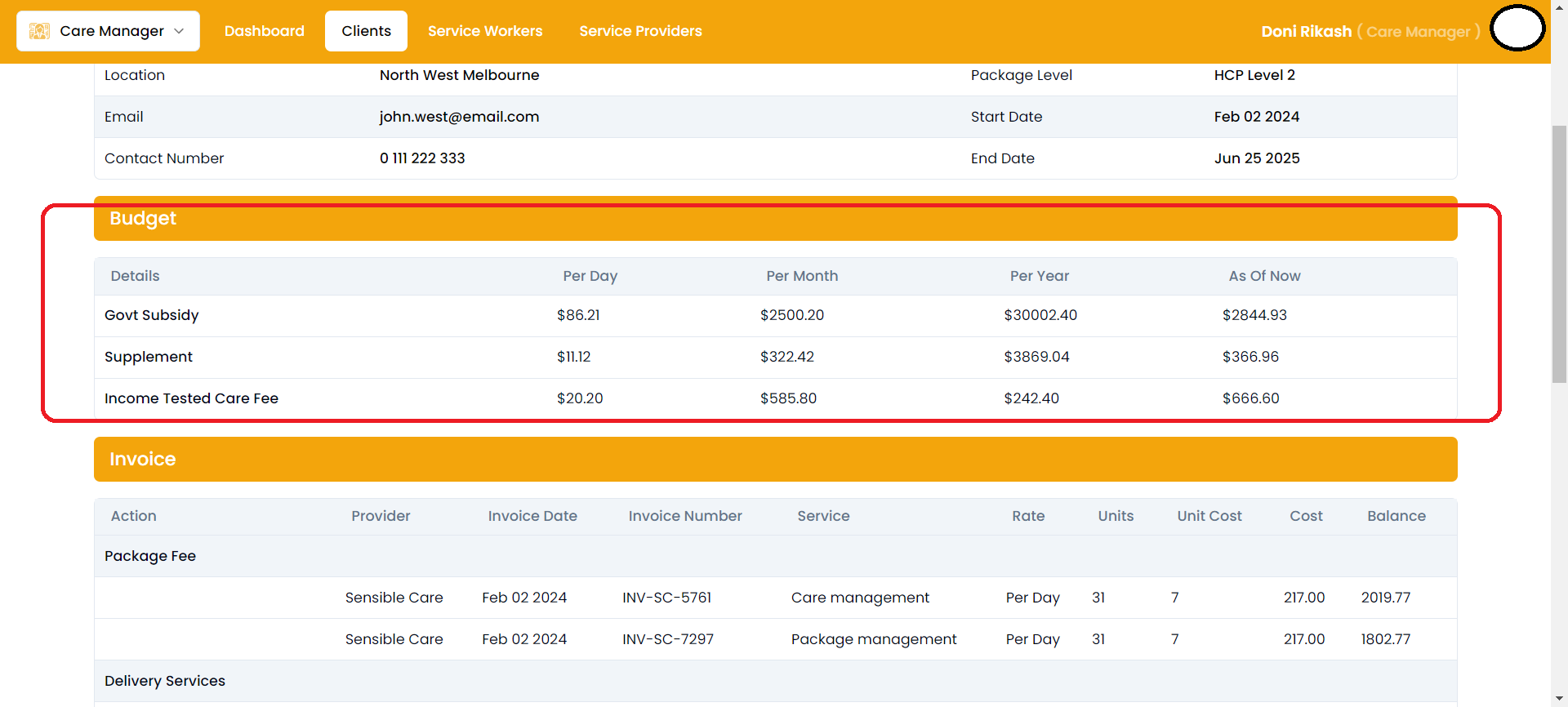
The Budget section outlines key financial components, including Government Subsidy, Supplement, and Income Tested Care Fee. Government Subsidy represents assistance, Supplement offers additional support, and Income Tested Care Fee pertains to fees based on income. This concise overview facilitates a clear understanding of your financial resources on the Client Statement.
Calculation
- Display Govt Subsidy, Supplement, Income Tested Care Fee, and Available Govt Fund for a client on this section
- Calculate the Available Govt Fund based on the formula: Available Govt Fund = Govt Subsidy + Supplement Income Tested Care Fee.
- Calculate the budget values "as of now" considering the data until the current date.
Services
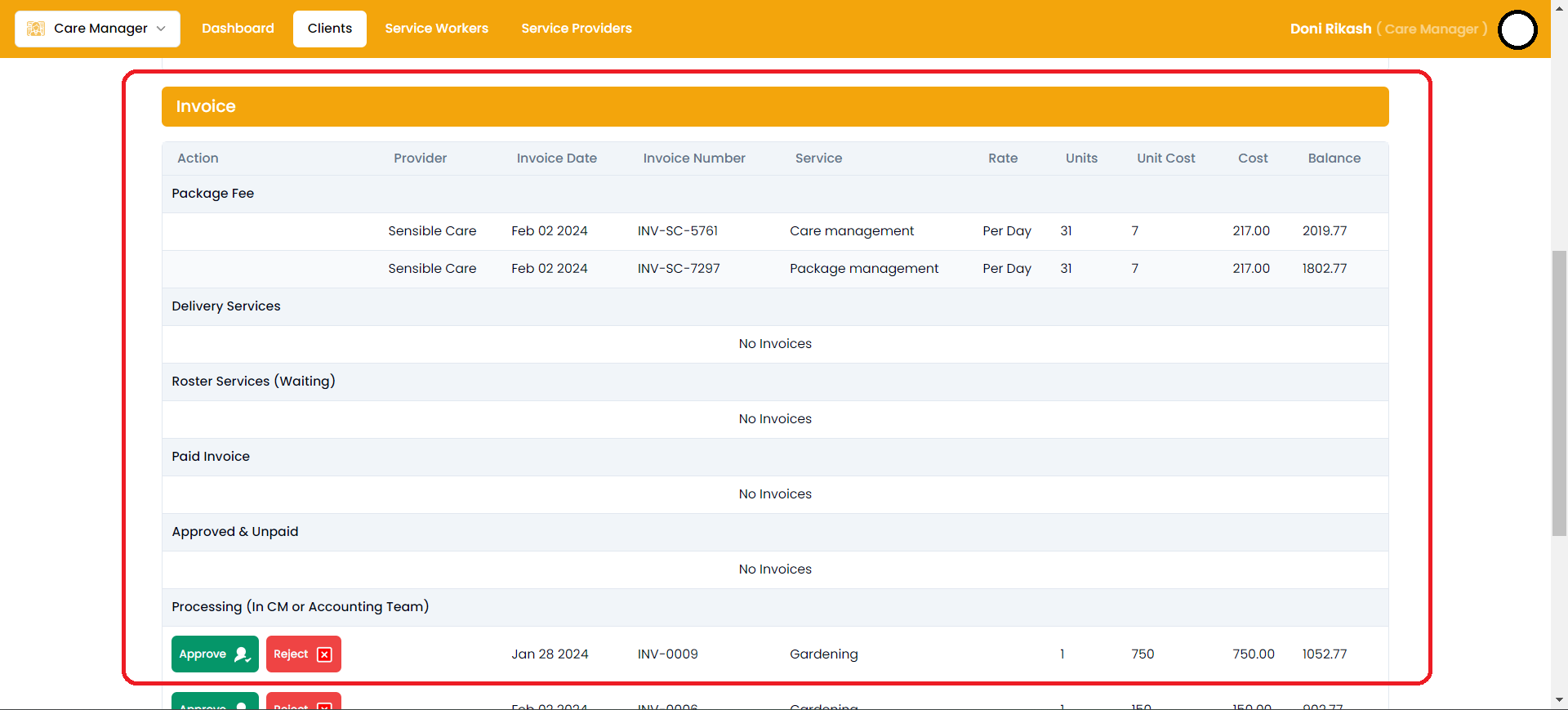
The Invoice section provides a detailed breakdown of various financial transactions, including Package Fee, Delivery Services, and Roster Services (Waiting). It also encompasses a snapshot of Paid Invoices, Approved & Unpaid invoices, and those currently in processing, either within the Care Management or Accounting Team. This comprehensive overview ensures transparency and efficient tracking of all invoicing activities on your Client Statement.
Package Fee
- Automatically generate invoices for care services along with package fees every month for each client.
- Invoices generated for care services and package fees are exempt from approval.
- Subtract the calculated package fee from the available Govt fund for the respective client.
- Display the remaining balance after deducting the package fee from the available Govt fund.
Delivery Service
- Approval /Accounting team uploads time sheets for delivery invoices using import page.
- The balance should be computed considering the previous package fee balances.
Roaster Service
- Roster services are delivery services invoices which has future invoice dates
- Approval /Accounting team uploads time sheets for delivery invoices using import page.
- The balance should be computed considering the previous delivery service balances.
Paid
- User creates Invoice in Xero.
- Paid invoices are drafted, submitted, approved and then paid
- Balance should be computed based on the previous roster service balances.
Approved & Unpaid
- User creates Invoice in Xero.
- Approved & Unpaid invoices are drafted, submitted and then approved.
- Balance should be computed based on the previous paid service balances.
Processing (In CM or Accounting Team)
- User creates Invoice in Xero.
- Processing invoices are drafted, and then submitted.
- Balance should be computed based on the previous approved & unpaid service balances.
Draft Invoice
- User creates Invoice in Xero.
- Draft invoices are drafted in xero.
- Balance should be computed based on the previous processing service balances.
Spending Monitoring
The Spending Monitoring section tracks your financial health by displaying both your income and expenditures. This dual focus allows you to analyze and manage your financial habits effectively, ensuring a clear understanding of your overall spending patterns.
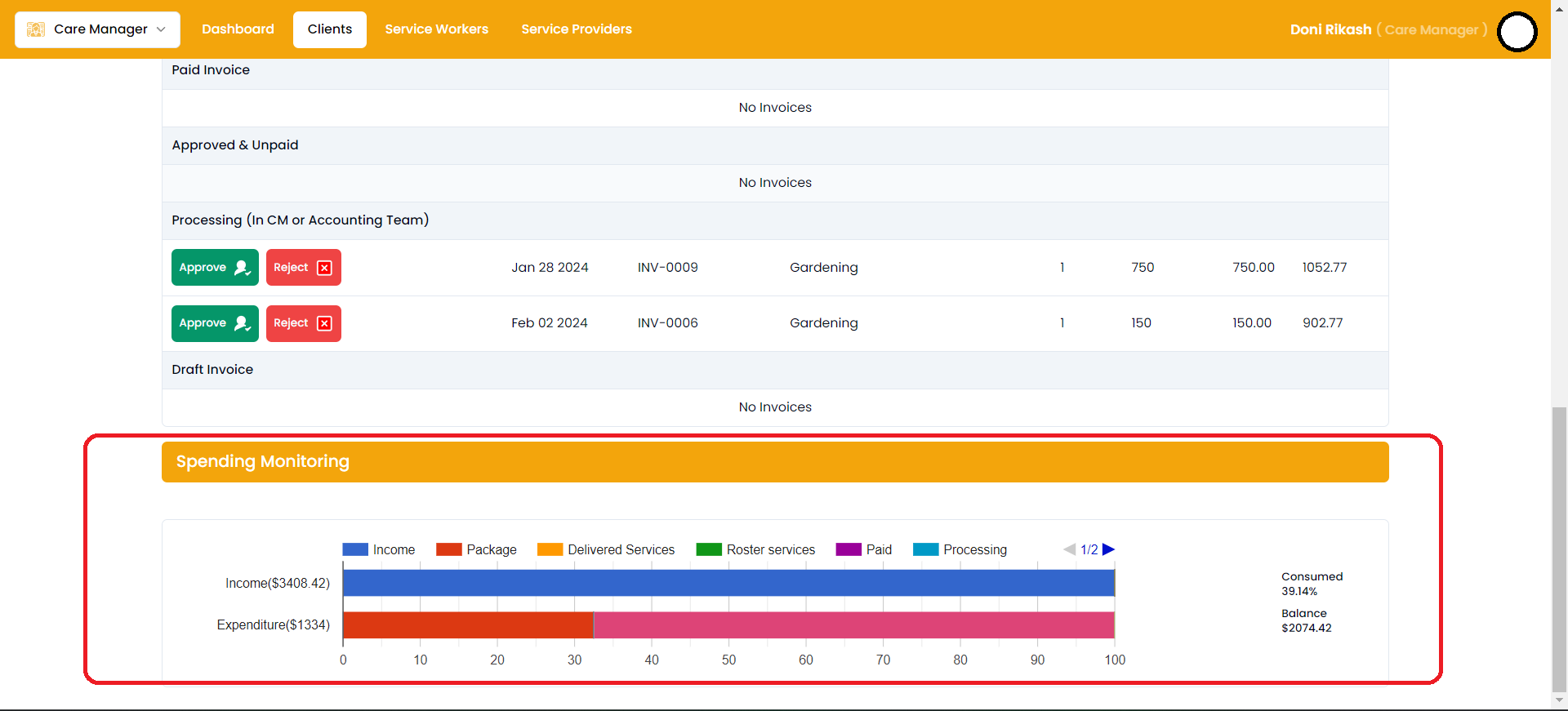
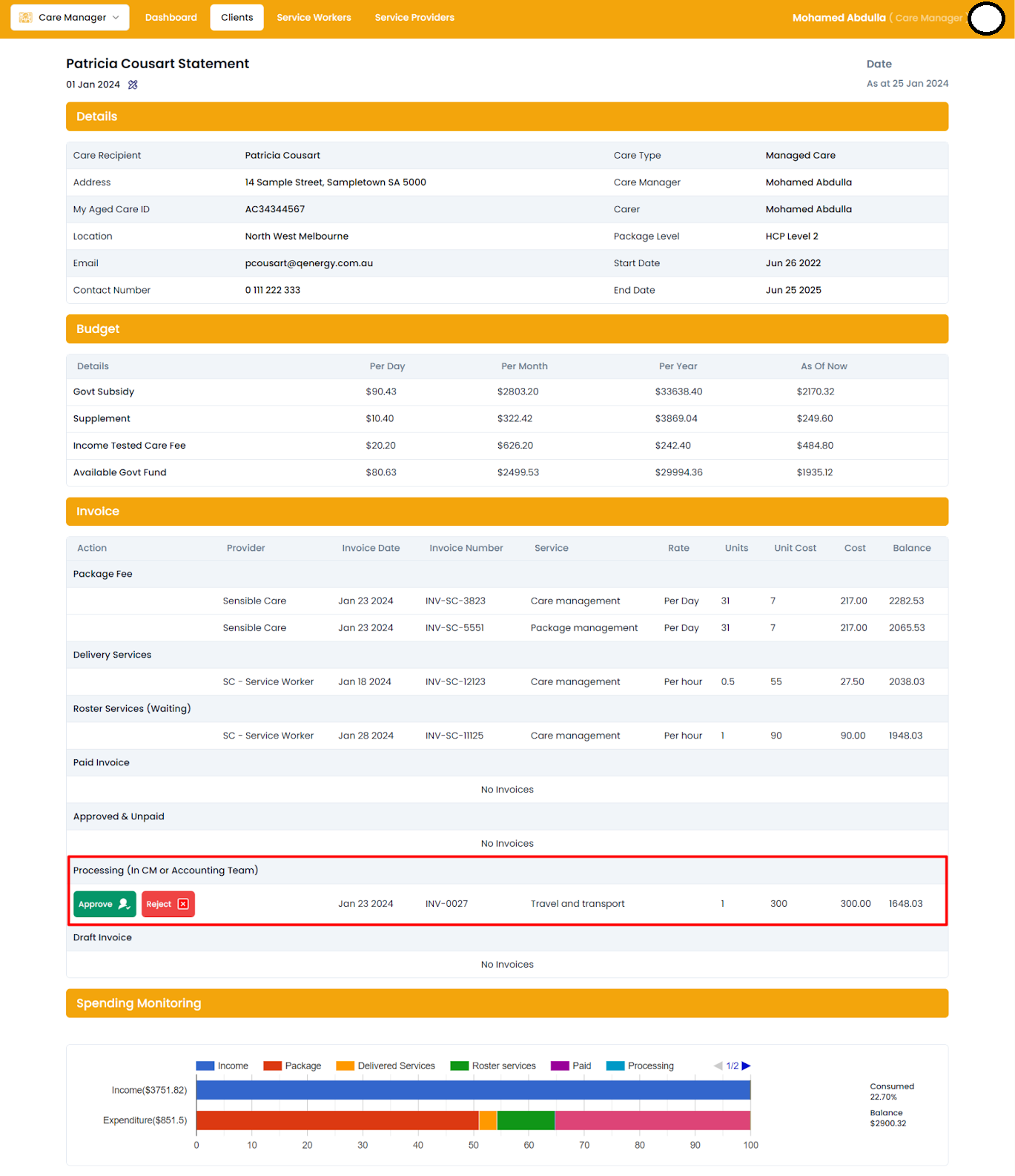
Positive Balance CM can approve.
Access the 'Approve' and 'Reject' buttons for line item invoices exclusively when a positive available balance is present; these buttons are intelligently hidden if the balance is not positive.
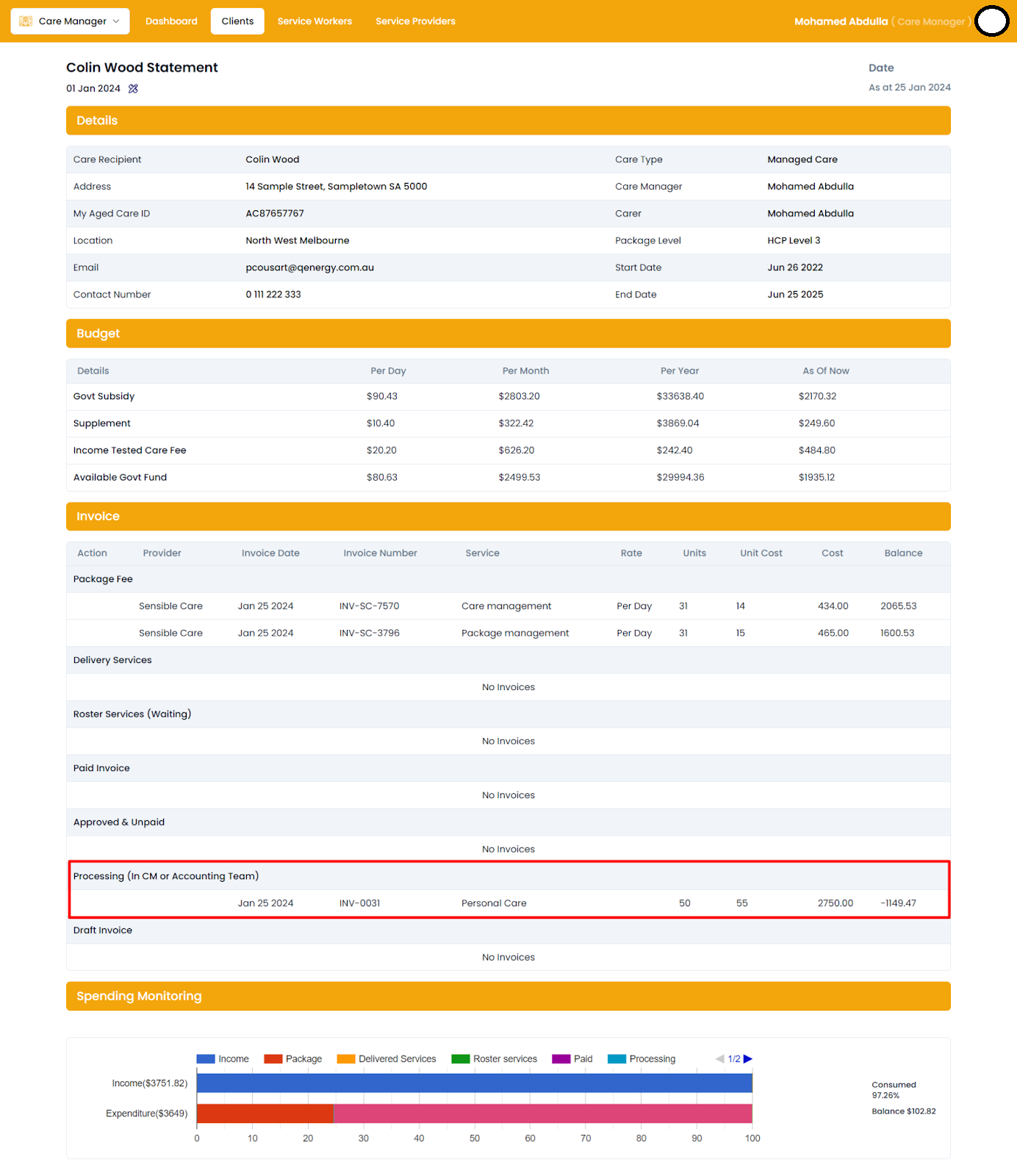
Negative Balance
The approval/reject buttons are not displayed when the balance is negative, preventing the Care Manager from approving the request.
Accounting Client Statement
The Accounting Client Statement page serves as a centralized platform for managing and monitoring client statement, similar to the Approval Client statement page. However, accounting users have restricted permissions and cannot approve or reject invoices.