Dashboard
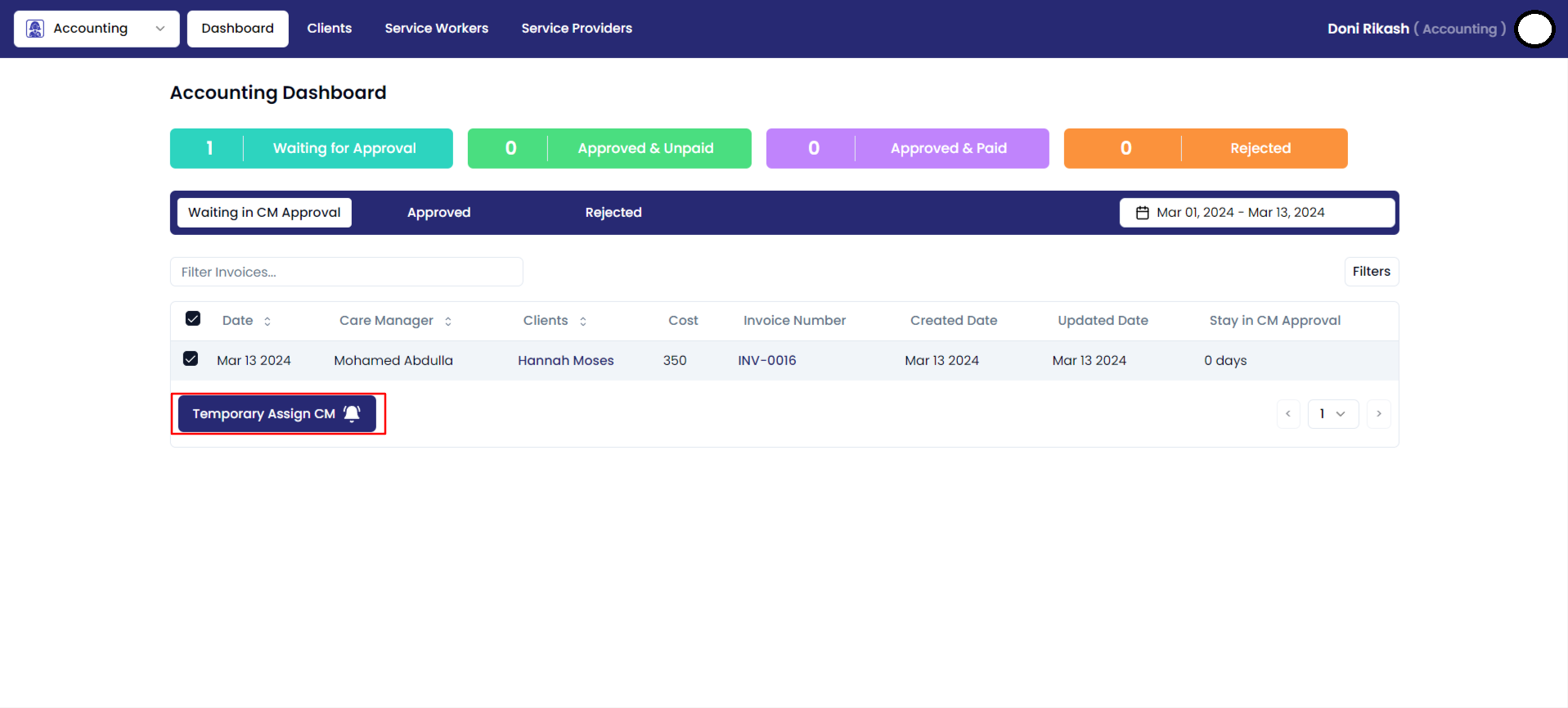
Upon logging in with your accounting credentials, you will seamlessly transition to the accounting dashboard, where an array of powerful tools awaits. Notably, you can efficiently assign invoices to different Care Managers directly from this centralized hub.
This dashboard is similar to approval dashboard except they can't approve or reject invoices
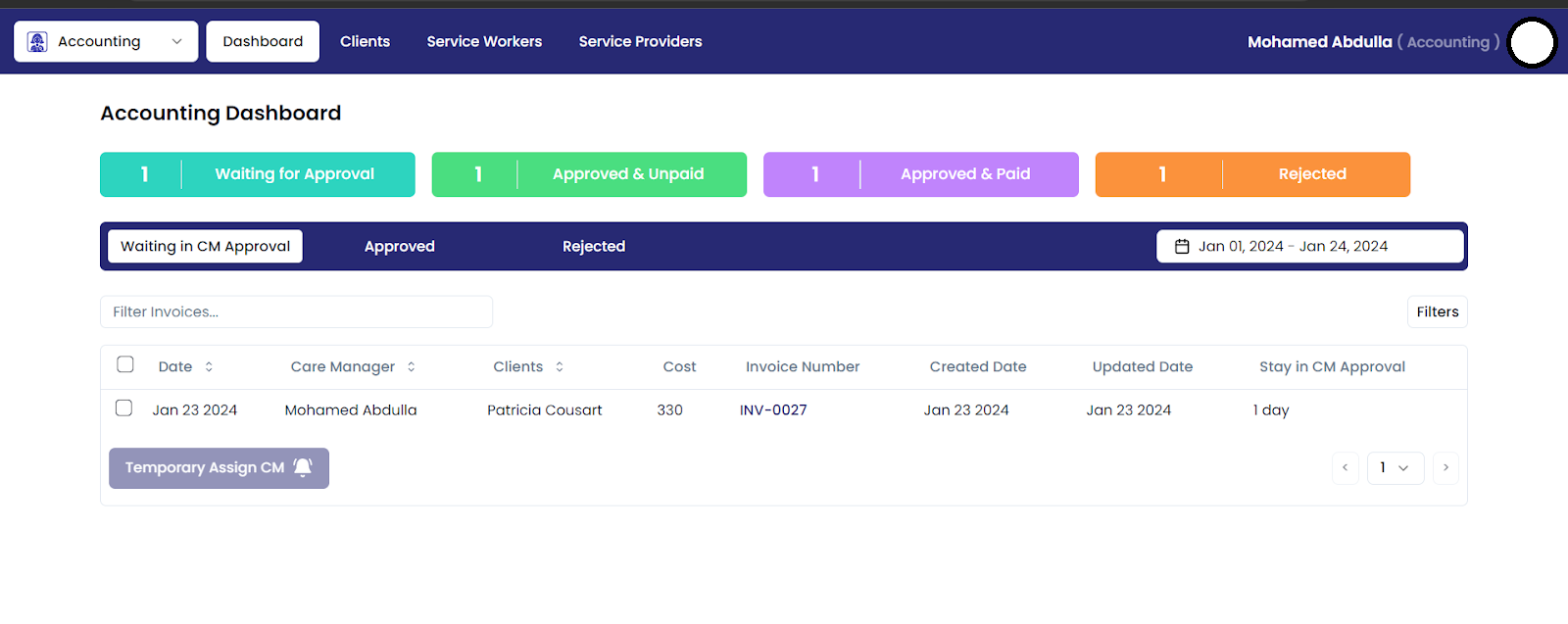
Tab 1: Waiting for CM Approval
Xero invoices in the submitted status are clearly presented on the platform, indicating that they are awaiting approval from Care Managers. This visual cue streamlines the process, providing a transparent overview of pending actions and ensuring efficient coordination between accounting and care management teams within the Xero platform.
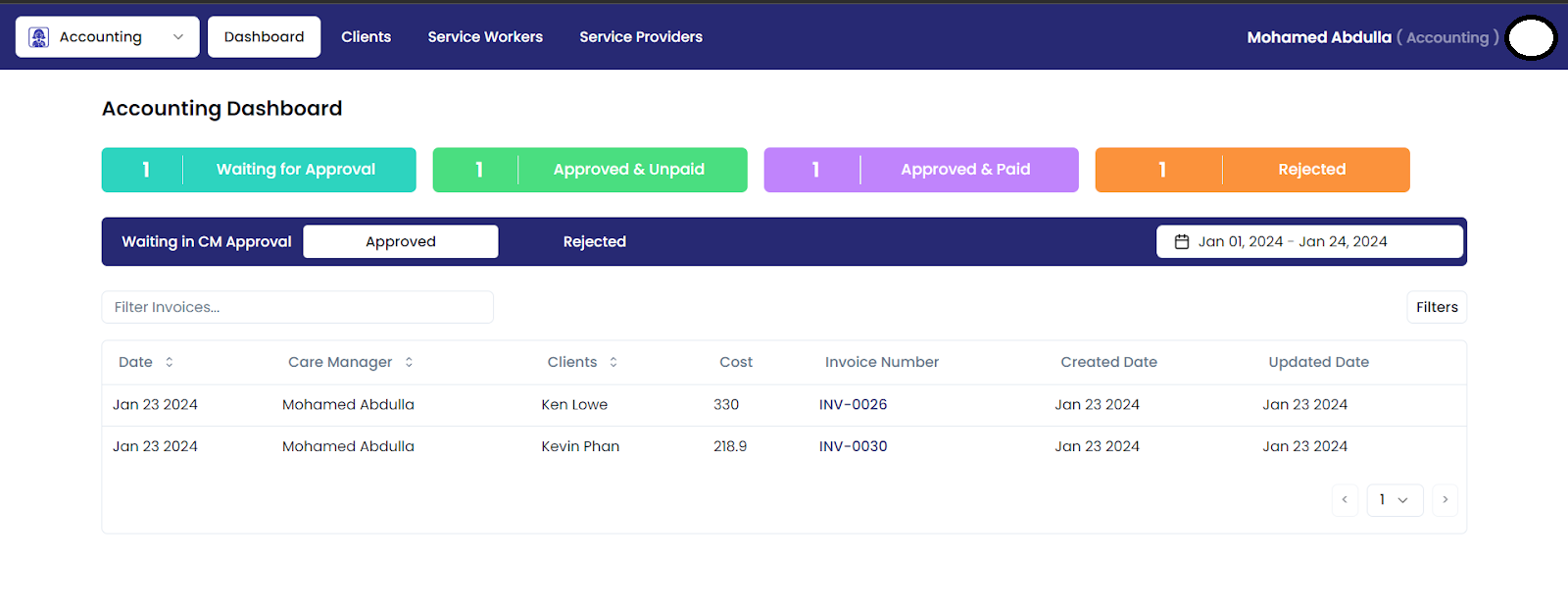
Tab 2: Approved
Xero invoices in both the approved and paid status are conveniently consolidated and displayed under the "Approved" category. This simplifies the tracking process, providing a concise overview of invoices that have successfully undergone the approval process and have been successfully paid within the Xero platform.
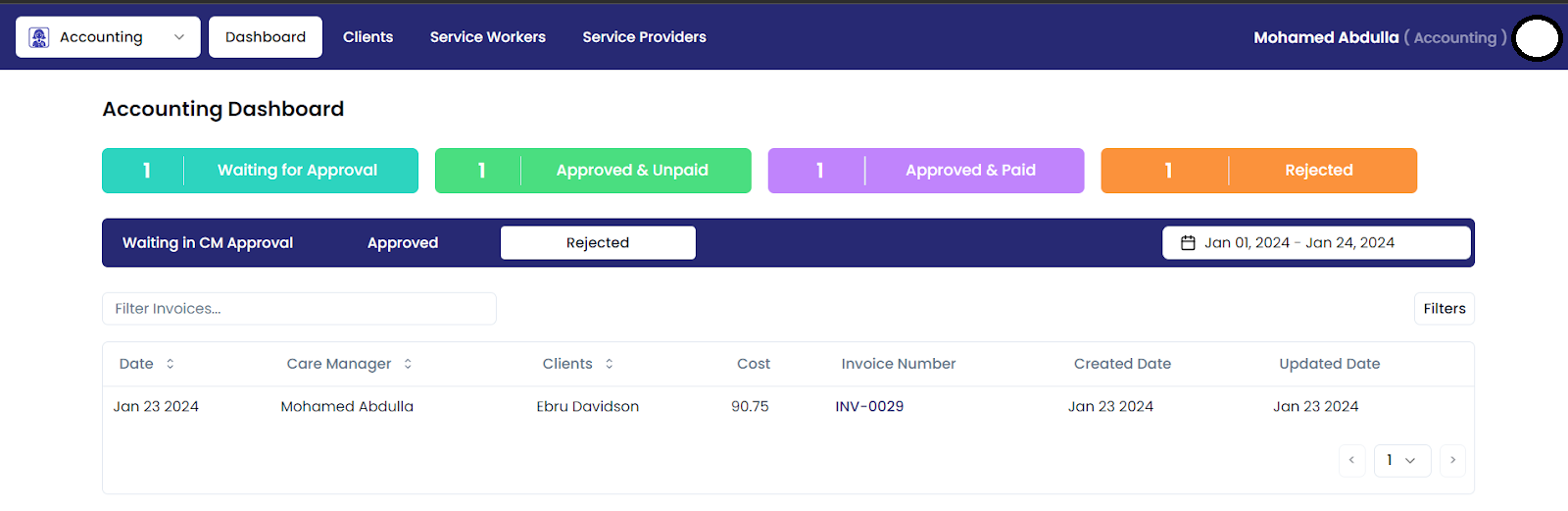
Tab 3: Rejected
Xero invoices marked with a rejected status are distinctly categorized and easily accessible under the "Rejected" section. This straightforward organization ensures clear visibility, allowing users to promptly identify and address invoices that did not meet approval criteria within the Xero platform.
Assign Care Manager:
The accounting portal includes a feature that enables the Accounting team to seamlessly assign a care manager to an invoice on a temporary basis. This enhancement significantly enhances flexibility and efficiency within invoicing procedures, thereby streamlining operations for optimal performance